1. Download ShareX from https://getsharex.com/, install, and run the program. The installation or the initial setup will ask you to download “ffmpeg.exe”. Allow it download.
2. To make sure that the recording is picking up the sound from your microphone (see Screenshot 1):
a. Go to “Task settings” (highlighted),
b. Select “Screen recorder” from the left panel,
c. Click the “Screen recording options” button (highlighted),
d. In the Sources section, click the drop-down menu “Audio source” and select your microphone (highlighted). Your selection may differ slightly from that in the screenshot.
e. You may now close all options windows

3. To start recording:
a. Go to your Desktop (minimize all open applications).
b. Open ShareX.
c. Click “Capture” in the top left (highlighted) and select “Screen recording” (see Screenshot 2)

d. ShareX will now ask you to specify the recording region of your screen. To record the full screen (see Screenshot 3), navigate the target to one of the top corners of the screen until W: and H: read 1920 and 1080, or your maximum screen resolution.
Please note: full screen selection is only possible when all applications are minimized (see step 3 a.)

e. Once you have selected the screen region, ShareX will begin recording immediately. This will be signified by the red dot in your taskbar (bottom left corner, see Screenshot 4). To stop recording, click the red dot once. Your video file will be saved automatically.

- Download Tencent Meeting from https://meeting.tencent.com/, install and launch the application.
- Create a meeting and join the meeting using your own name.
- Turn on your microphone and make sure that the recording can capture audio from your microphone.
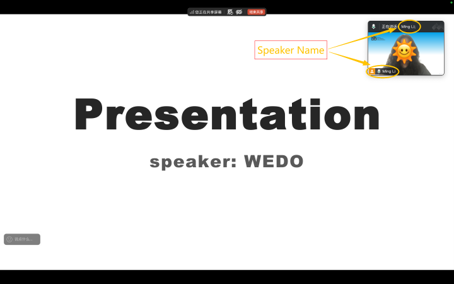
- Open the PowerPoint presentation for your presentation. Click “Share Screen” to share your presentation, and turn on your camera. Make sure that the presenter’s video appears in the upper-left corner of the screen (see Screenshot 1)
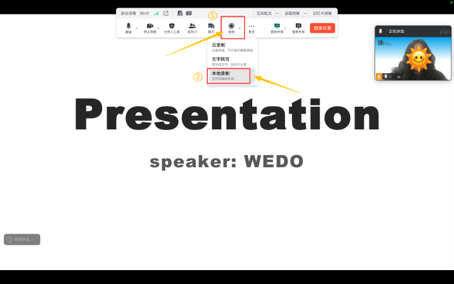
- Click “Record” in the top menu bar and select “Local Recording” (see Screenshot 2).
- After completing your presentation, click “Stop Recording” in the menu bar (see Screenshot 3).

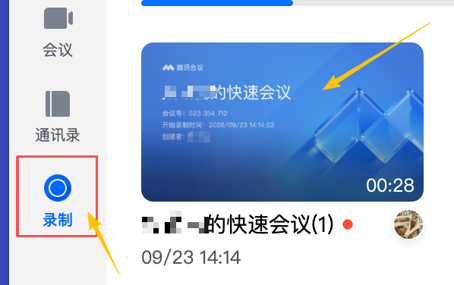
- Stop screen sharing. You can then locate the recorded video file on your computer. (see Screenshot 4)